Control your DUT with relays in the web app
A bench can reach into your DUT's hardware through relays: it can hold a boot strap, press a button, or switch power. This guide shows how to check each relay channel in the MIMICK Cloud web app, switch it, and put it back.
What each channel does depends on how your bench is wired to your DUT. Your org admin gives the channels names in the bench's peripheral config, so the names tell you what they're for.
Prefer the terminal, or need to set a GPIO pin? See Control your DUT with GPIO and relays from the CLI.
What you need
- Operator access to the bench
- A relay board (
relay-usb,relay-esphome) on the bench, wired to your DUT
Changes reach your DUT immediately and affect anyone using it.
Step 1 · Find the relay board
- Sign in to the MIMICK Cloud web app.
- Select My Benches in the sidebar, then the card for the bench wired to your DUT.
- On the Inventory tab, find the relay board. It has relay in its Type column and a power icon next to its name. Check that its Status is Present.
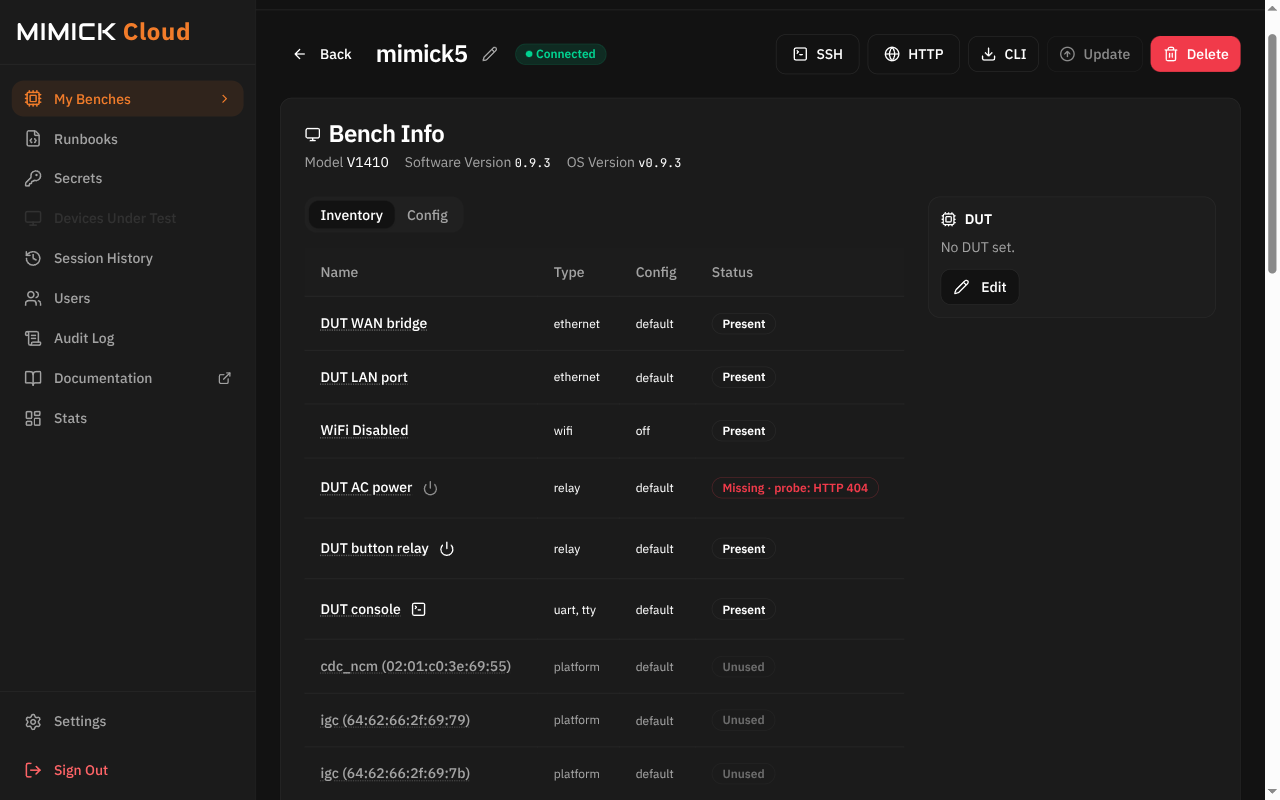
The names and the number of peripherals depend on how your bench is set up, so yours won't match this example.
Step 2 · Open the relay controls
Select the power icon next to the relay board's name. Its controls open in a new browser window, with the bench and the relay board in the top bar. Wait for the status there to show Live.
The window lists each channel with its number, its name, and a switch that shows its current state. The window keeps checking the relay board, so a change someone else makes shows up within a few seconds.
Step 3 · Switch a channel
- Note the channel's current state, so you can put it back later.
- Select the channel's switch. The switch moves once the bench confirms the change.
- When you're done, select the switch again to put the channel back the way you found it.
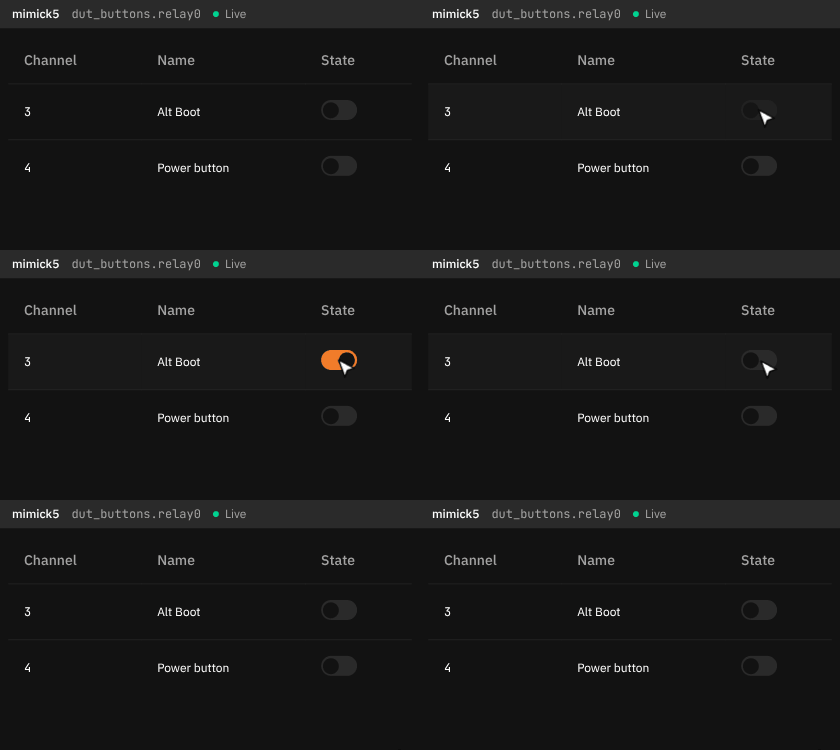
A channel stays where you set it after you close the window, until you or someone else changes it.
If it doesn't work
| What you see | What to do |
|---|---|
| The power icon is grayed out, with the hint Requires a live connection to the bench | The bench is offline. Check that it has power and a network connection. |
| The power icon is grayed out, with the hint Peripheral is missing | The bench can't reach the relay board. Check its cable, or its network connection for a networked relay. |
| The window doesn't open, and the icon's hint says your browser blocked it | Select the icon again, or allow pop-ups for the MIMICK Cloud web app. |
| The window says This bench is offline | The bench went offline. Close the window and try again once it's back. |
| No configured relay channels on this peripheral | The bench config doesn't list any channels on this board. Ask your org admin to add them. |
| The status says Failed | Read the reason next to it. A permission error means you need the Operator grant on the bench, so ask your org admin. |
| Write failed, followed by a reason | The bench couldn't switch the channel. Read the reason, then select the switch again. |
| The switch moves, but your DUT doesn't react | The channel may not be wired to the part of the DUT you expect. Ask your org admin to check the bench's wiring and config. |
Related
- Control your DUT with GPIO and relays from the CLI
- Open a serial console in the web app, to watch how your DUT reacts
- Peripherals & interfaces
- Identity & access