Open a serial console in the web app
The MIMICK Cloud web app can open your DUT's serial (UART) console in a browser window. Whatever the DUT prints shows up in the window, and whatever you type goes to the DUT. You don't need to install anything.
Prefer the terminal? See Open a serial console from the CLI.
What you need
- Operator access to the bench
- A console port (
linux-tty) on the bench, wired to your DUT
Anyone already on the console shares it with you.
Step 1 · Open your bench
- Sign in to the MIMICK Cloud web app.
- Select My Benches in the sidebar.
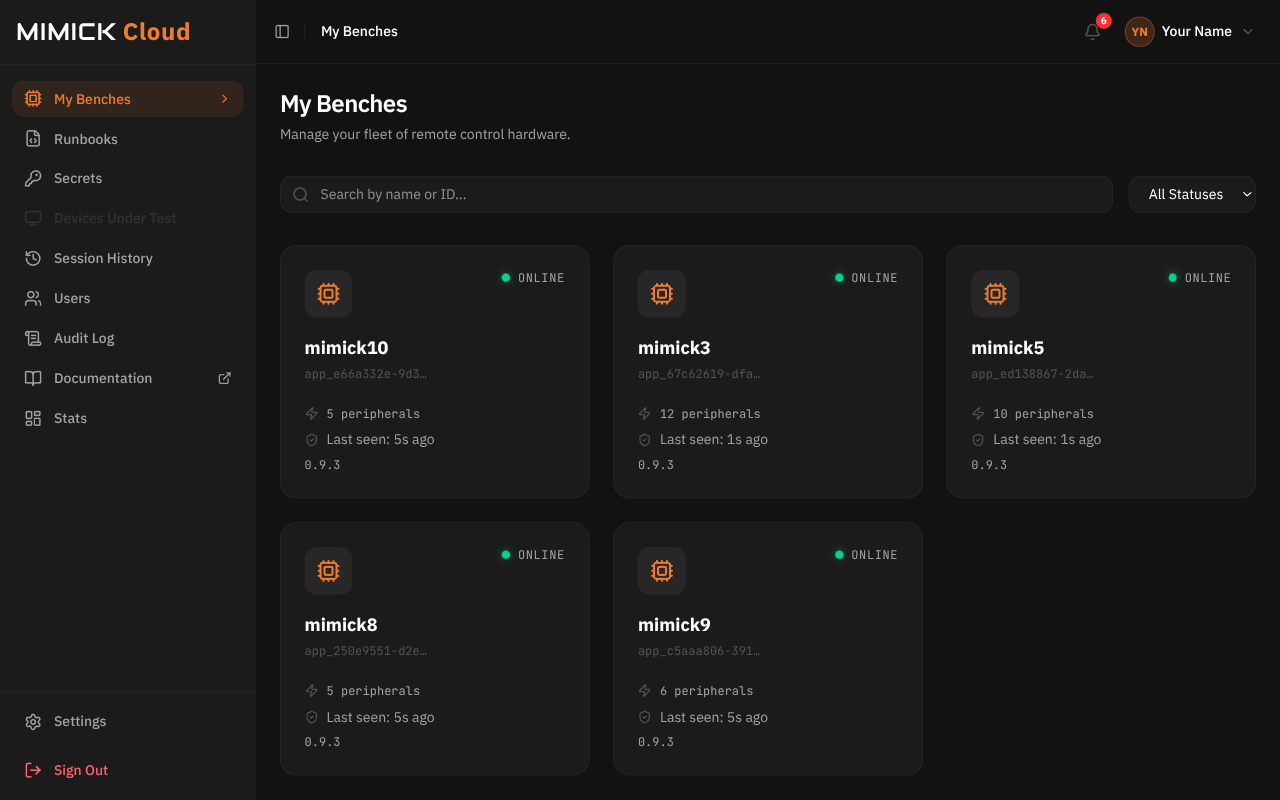
- Select the card for the bench wired to your DUT.
Step 2 · Find the console port
The bench page opens on Bench Info, with the Inventory tab selected. Inventory lists every peripheral on the bench, using the names your org admin gave them.
A peripheral with a console has a terminal icon next to its name, and uart, tty in its Type column. Find the one wired to your DUT and check that its Status is Present.
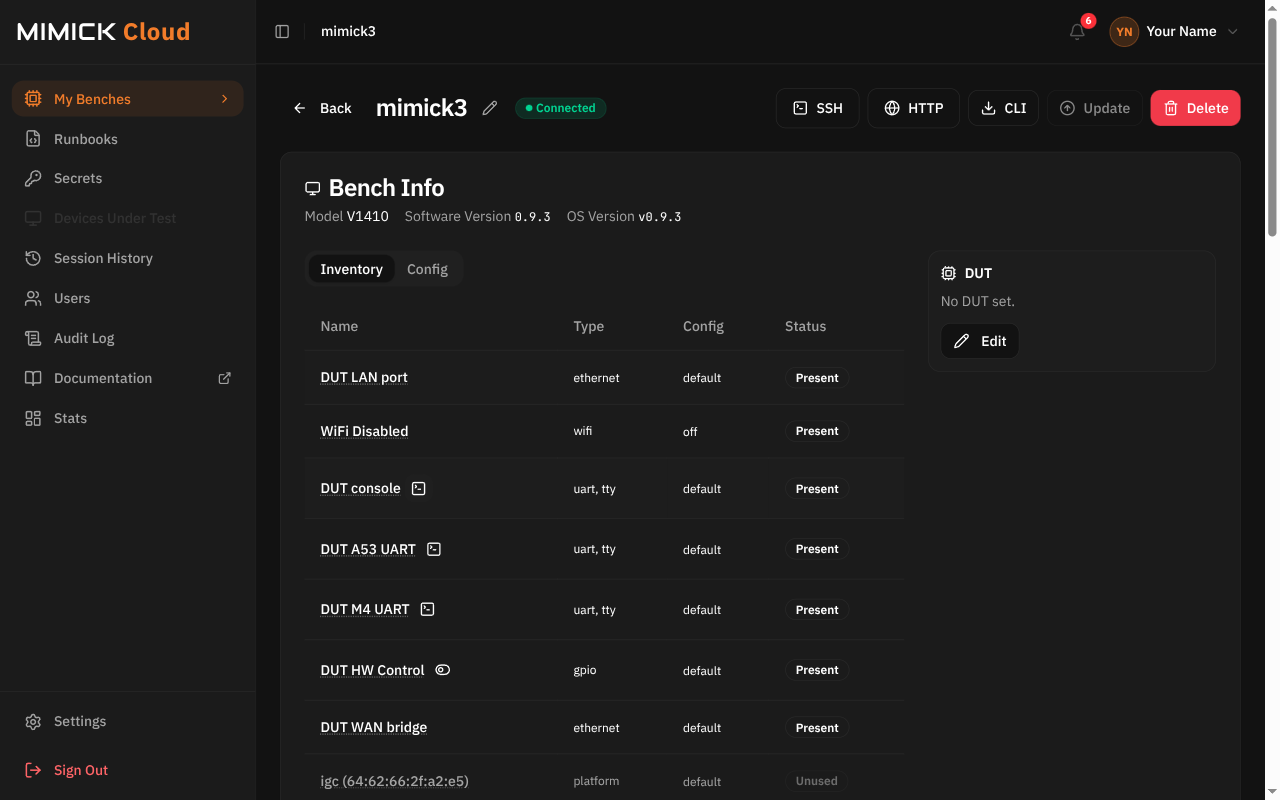
The names and the number of ports depend on how your bench is set up, so yours won't match this example.
Step 3 · Open the console
- Select the terminal icon next to the peripheral's name. The console opens in a new browser window.
- Wait for the status in the top bar to change from Opening… to Live.
- Select the console area, then press Enter to get a prompt from your DUT.
- Work as you would on a local serial console.

When you join, MIMICK replays the console's most recent output, then streams live output. If the console stays blank after you press Enter, the DUT may be powered off, still booting, or not sending anything on this port.
The Cloud closes a console that carries no traffic in either direction for two minutes. Open it again to rejoin.
A serial console has a fixed size, shown at the bottom right of the window. To make the text bigger or smaller, use the - and + buttons at the bottom left, or press Ctrl and + or -.
Step 4 · Close the console
Close the console window when you're done. Closing it ends only your view. Anyone else attached to the same console stays connected.
If you can't connect
| What you see | What to do |
|---|---|
| The terminal icon is grayed out, with the hint Requires a live connection to the bench | The bench is offline. Check that it has power and a network connection. |
| The terminal icon is grayed out, with the hint Peripheral is missing | The bench can't see the serial adapter. Check its USB cable. |
| No terminal icon next to your adapter | The bench config doesn't give that adapter a console. Ask your org admin to add a TTY interface to it. |
| The window doesn't open, and the icon's hint says your browser blocked it | Select the icon again, or allow pop-ups for the MIMICK Cloud web app. |
| The window says This bench is offline | The bench went offline. Close the window and try again once it's back. |
| The status says Failed | Read the reason next to it. A permission error means you need the Operator grant on the bench, so ask your org admin. |
| Garbled characters | The serial settings don't match your DUT, most often the baud rate. Ask your org admin to fix them in the bench's peripheral config. |
| The window closes or fails after two minutes of silence | The console carried no traffic in either direction for two minutes, so the Cloud closed it. Open it again. |